How to create a WhatsApp Subscriber in WhatzBot

How to create a WhatsApp Subscriber in WhatzBot

Subscriber Manager allows you to create subscriber easily and assign the subscribers labels, sequences etc.


Step 1: Go to WhatsApp Subscriber

  • Log in to your WhatzBot dashboard.
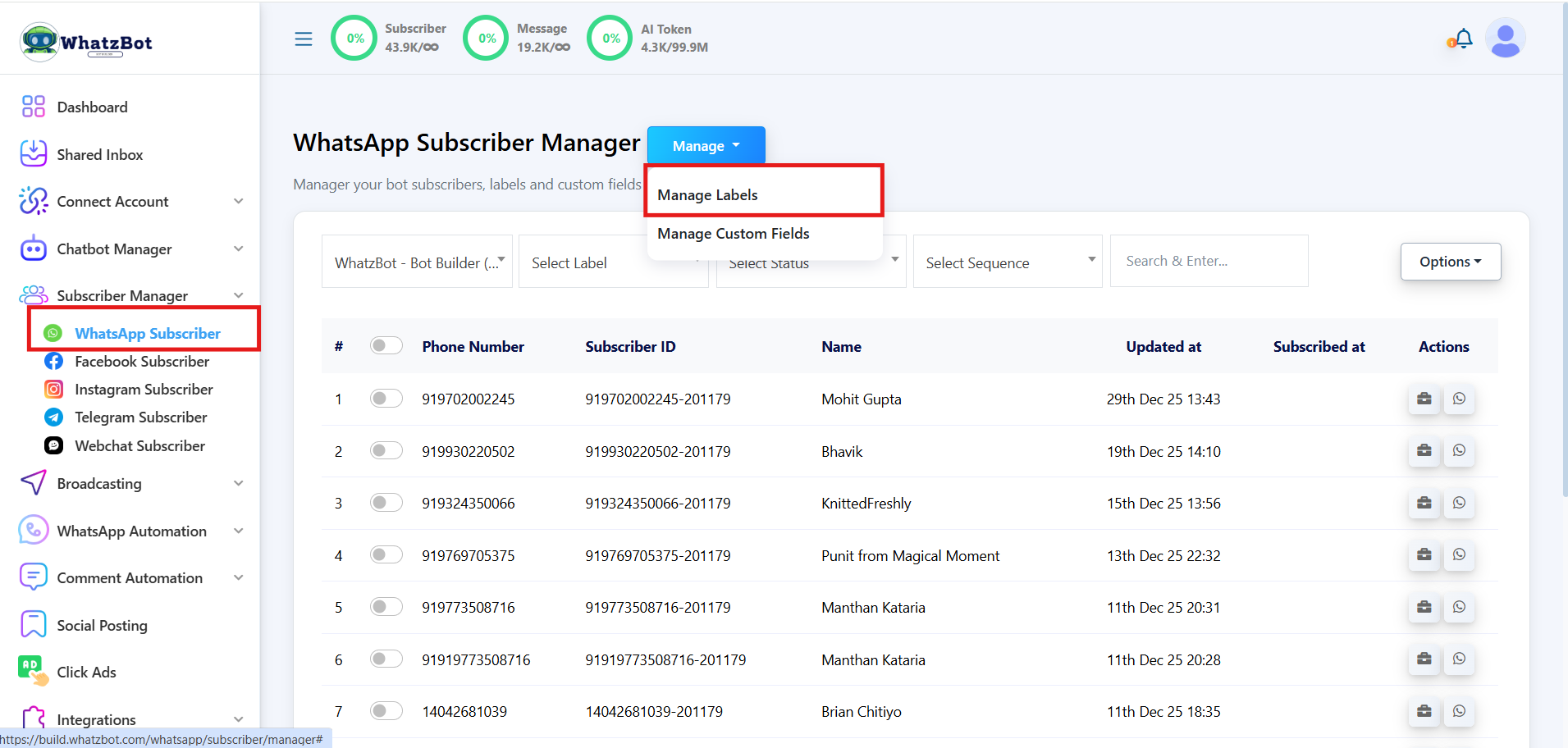
  • From the sidebar, click on Subscriber Manager → WhatsApp Subscriber.
  • You will see a list of all your existing WhatsApp Subscribers.


Step 2: Manage Labels

  • Click on Manage and it will give you a drop down list of manage labels and manage custom fields.
  • From that click on Manage Labels.
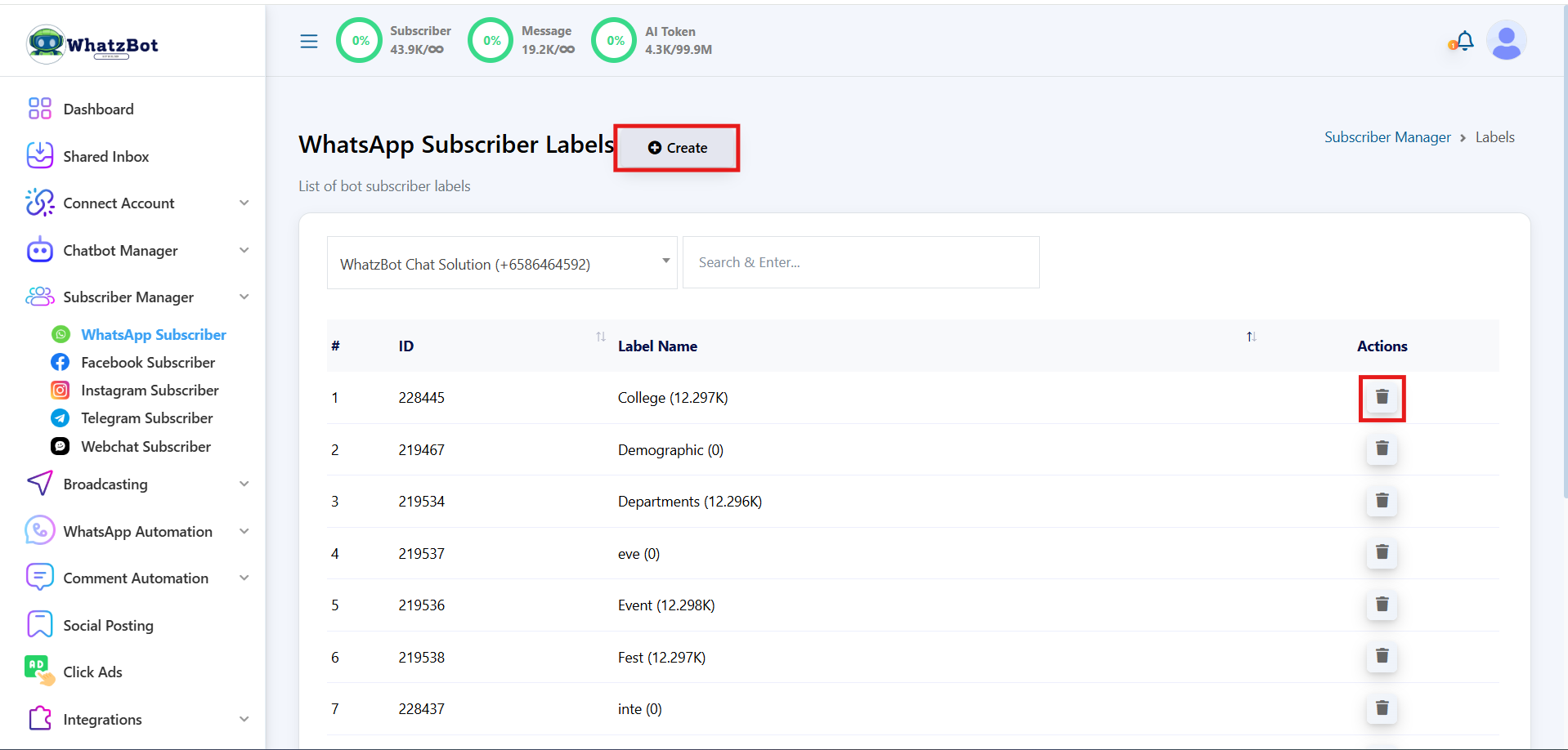
  • Now you will be able to see your previously created labels here.
  • If you want to create new labels simply click on Create at the top.
  • Give the label a name for further usage, also you can select the bot you want to create this label for.
  • And then click on save.
  • It will show the recently created label in the list and it is ready to use.
  • You can also just simply delete the labels by clicking on the delete icon on the right hand side.

 Manage Labels

Create Labels

Step 3: Import Subscribers

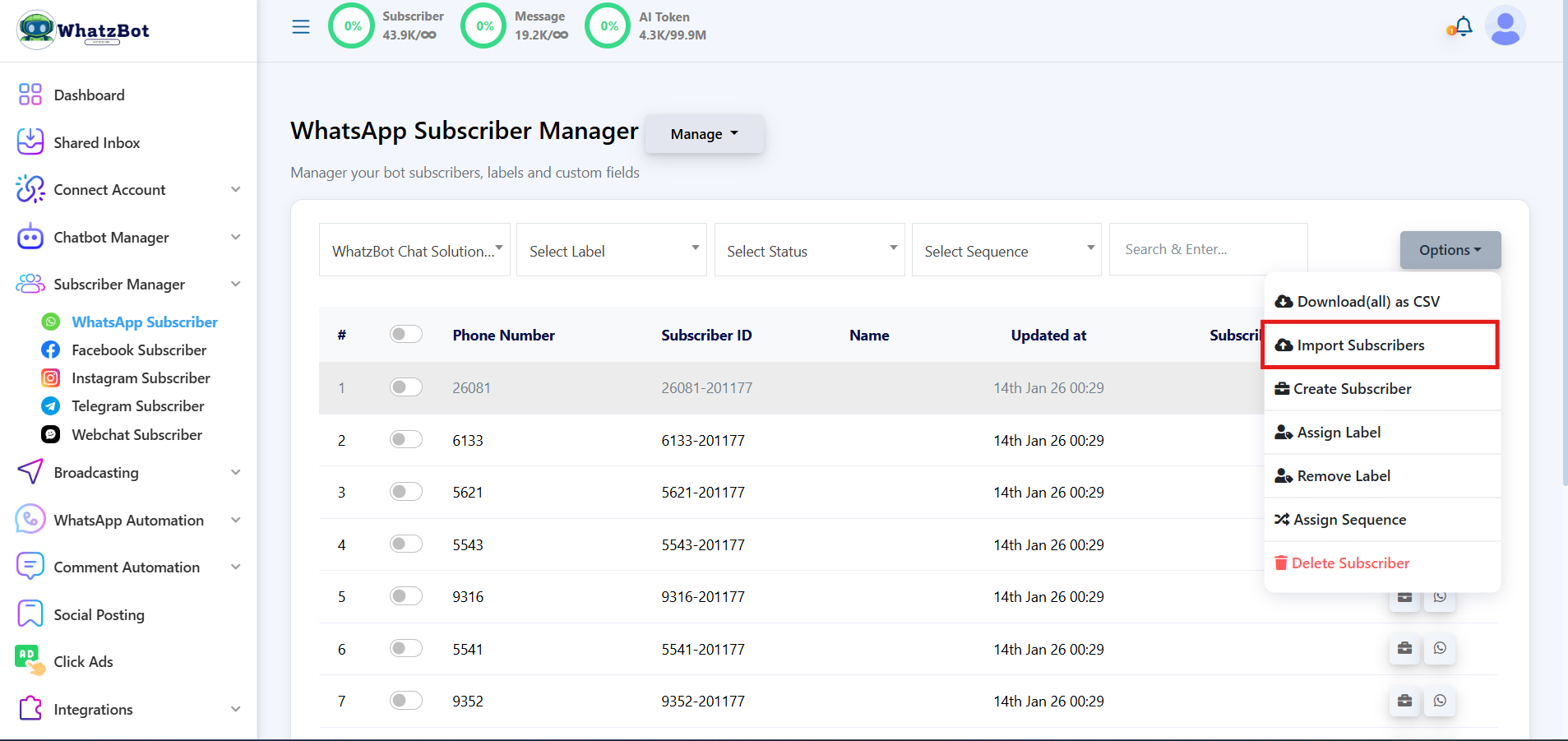
  • Click on the options in the right corner and it will show a drop down list. From that click on Import Subscribers.
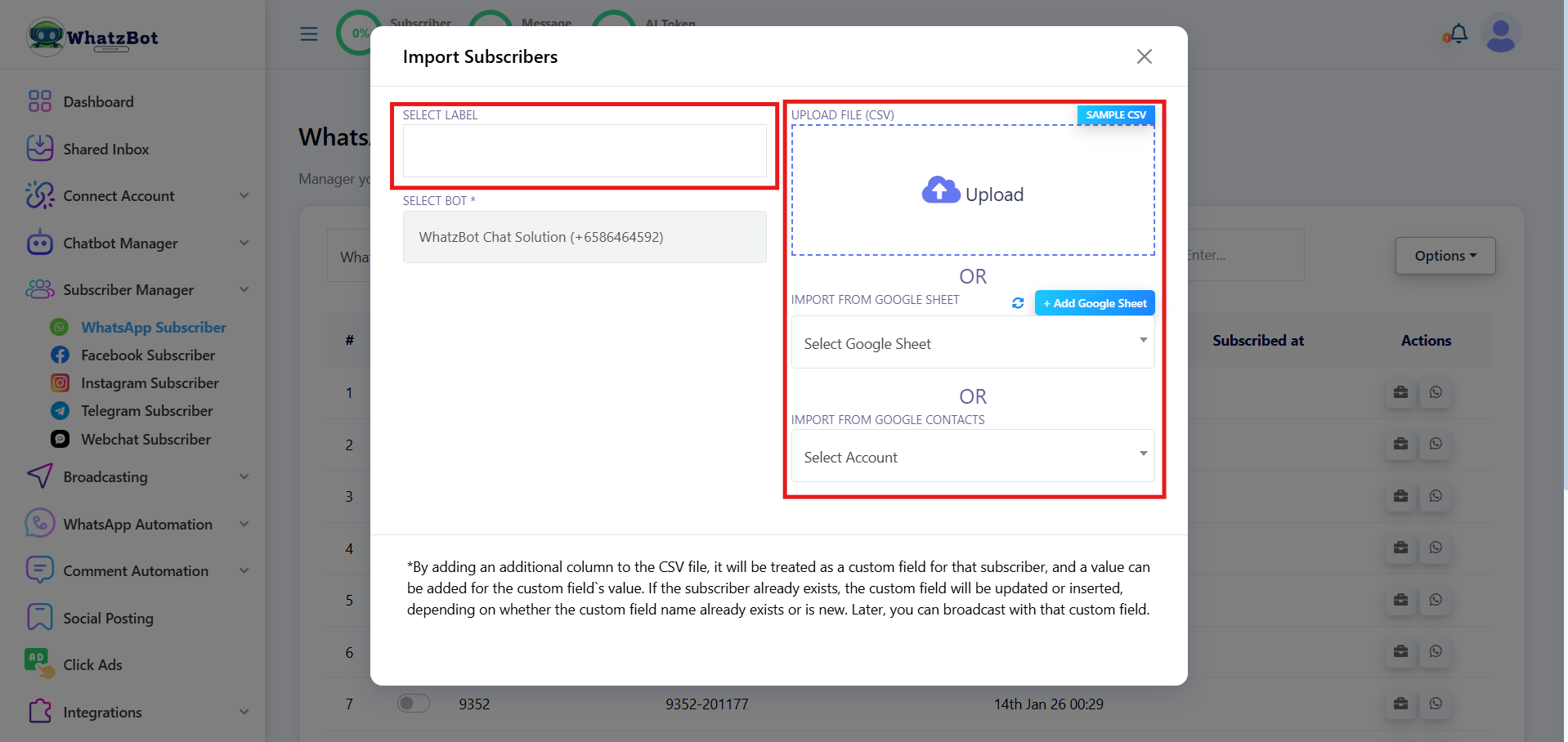
  • Now here you can select the labels that you want to assign to the subscribers.
  • Upload file (CSV): You will have to upload a .csv file here which contains the details of the subscribers you want to add.
  • OR Import From Google Sheet: You can also import the subscribers using the google sheets.
  • OR Import From Google Contacts: You can import the subscribers by your google contacts account.
  • After adding the file you will be able to see how your subscribers data will be extracted. Then you will have to map the data and save it.
  • Now in the list of the subscribers you can see the subscribers you just added.

 Import Subscribers

Import Subscribers

Step 4: Create Subscriber

  • In this you can manually add the subscribers.
  • Name: Give the name of the subscriber.
  • Phone Number: And the phone number too for contacting.


Step 5: Assign Label

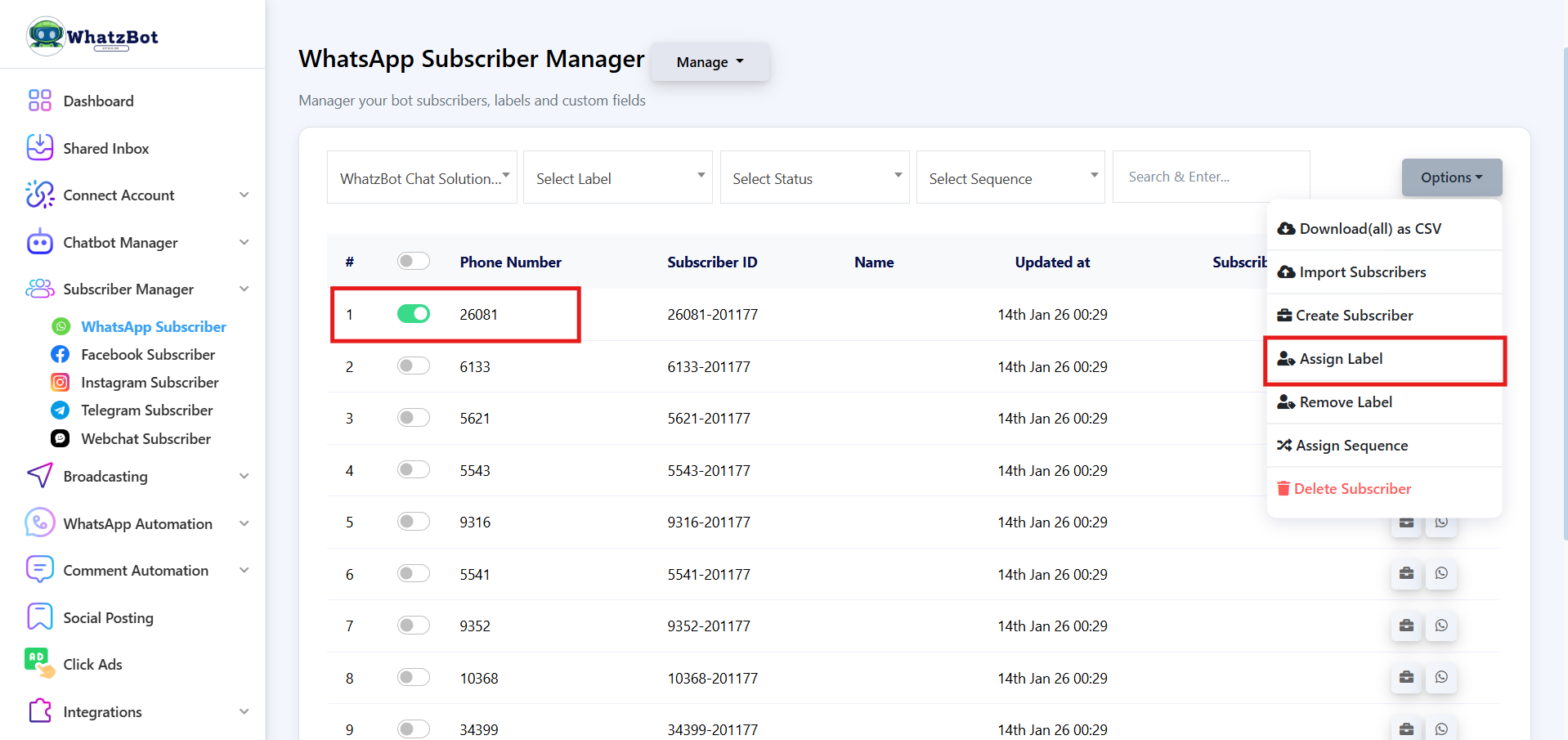
  • If you want to assign the labels manually to the subscribers, then toggle and select the subscribers and click on options and then click on Assign Label.
  • It will show you Select Label from where you can select the labels you want to assign to the subscribers.
  • The same goes for Removing the Labels and Assign Sequence too.

 Assign Label

Step 6: Delete Subscribers

  • If you want to delete the Subscribers, toggle and select the subscribers and click on options, in the last you can see delete subscribers, click on it and the subscriber will be deleted.


Contact Our Team

If you still can't find an answer to what you're looking for, or you have a specific question, open a new ticket and we'd be happy to help!

Contact Us