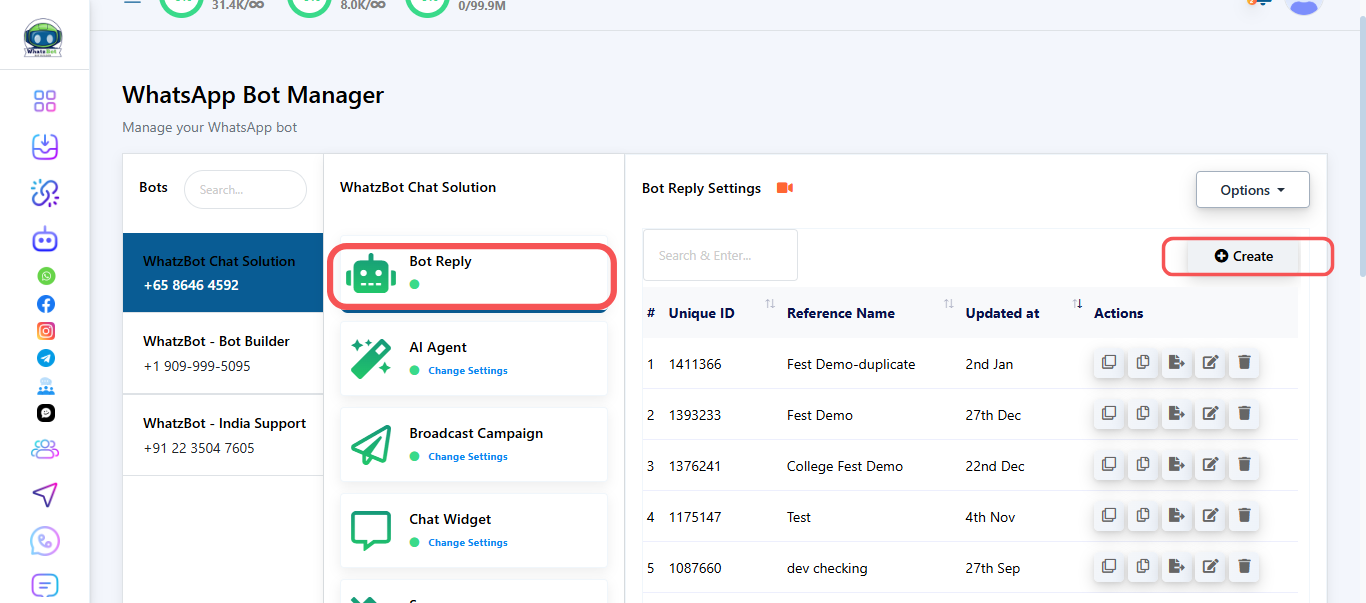
How to create a Bot Reply in WhatzBot

Creating a Bot is a better way to send messages to your users or customers.


Step 1: Go to Bot Reply

  • Log in to your WhatzBot dashboard.
  • From the sidebar, click on Broadcasting → WhatsApp Bot.
  • In the list look for Bot Reply.


Step 2: Start a new Bot Reply

  • Click the create button at the top of the page.
  • A Bot Reply setup panel will open where you can configure the Bot details.

 Bot Reply Creation

Step 3: Set up the Reference

  • Write down the keywords for which the bot will be triggered: You can give the words you want by which the message will be triggered.
  • Send reply based on your matching type: In this you have two options:
  1. Exact keyword match: By selecting this the bot will only be triggered after the user sends the exact message you used as the keyword.
  2. String match: Using this, the bot will be triggered even if one string matches with the keyword you gave.
  • Title: Give the bot the name you desire.
  • Add labels: You can add the labels here that you had created earlier.
  • Remove labels: Here you can remove the labels that you added in the earlier context.
  • Subscribe to sequence: Here you can create a new sequence or use the already created one.
  • Unsubscribe from sequence: Here you can select a sequence that you want to unsubscribe from.
  • Save to system field: Here the data will be stored in the system’s field.
  • Assign Conversation to a group: Through this you can assign this conversation to a group of your company.
  • Assign conversation to a user: Through this you can assign the conversation to a particular user you wish to.
  • Send data to Webhook URL: Here you can the Webhook URL to send the data that is received.
  • Send data to Google Sheets: Add the Google Sheets link so that you can receive the data in sheets format.
  • Save the data by clicking on the save button on the bottom of the side panel.


Step 4: Set up the Sequence 

  • Sequence Campaign Name: Give this a sequence a name you desire to.
  • Preferred delivery time for messages scheduled outside the 24-hour window: Here you can select the time for your message to be delivered.
  • Time Zone: Here you can select your preferred time zone you want to send messages at.
  • After saving it would look something like this and you can also delete the “Send Message After” as your requirement.


Step 5: Set up the Sequence Message

  • In this you will have two options:
  1. Option 1 – Regular Message (24-Hour Window) Send a standard message to your subscriber, but it must be delivered within 24 hours of their last interaction. Best for quick follow-ups, reminders, or conversational replies.
  • In this you will have to select “Schedule Message After” as when to send the message.
  1. Option 2 – Template Message (Anytime) Send an approved template message at any time you want — minutes, hours, or even days later. Perfect for sequences, offers, updates, or re-engagement beyond the 24-hour window.
  • Select template: You will have to select the templates you created earlier in the “Message Template”. After selecting the template, you will get other options to fill in related to the Message Template you created.
  • Schedule Message After: This would be the same as the above.
  • Click on save and now at the top you can see various buttons, which you can just drag and drop easily to use and config them.


  • Now I want to compose a message so, I am selecting the text field.


Step 6: Set up the Text Field

  • Here you can write the text you want to send to the user after they reply to the question send earlier.
  • Smart Delay in Reply: You can set the timing of this reply to the user in seconds, minutes and hours.
  • Now I want to add a button to this message so I am going to click on the interactive.
  • From this we can drag the button part.


Step 7: Set up the Interactive

  • Text: You can give a header to your message if required.
  • Message Body: Custom the message you want to send to your customer.
  • Message Footer: Give your message a footer if required.


Step 8: Set up the Button

  • Button Generation Type: It has two types static and dynamic. Static only lets the user reply with one or two options. But if you use dynamic you can let the user reply anything they want.
  • Button Title: Give the button a recognizable title.
  • When user press the button: It has multiple options.
  • Send Message: You can custom a message you want to send to the user.
  • Start a Flow: You can assign an already created flow to this bot.
  • System Default Action Button: You can assign the action buttons that are already created or say the default action buttons.


Step 9: Save the Bot

  • Click on the save button on the top right corner to save the bot and you will see a success message.
  • Now close this window and go back to the WhatzBot Manager Page and refresh it, now you can see your created bot in the list.
  • In the right corner you can see five options which are duplicate, copy to other bot, export data, edit and delete.

Contact Our Team

If you still can't find an answer to what you're looking for, or you have a specific question, open a new ticket and we'd be happy to help!

Contact Us