How to create a message template in WhatzBot
Message templates are used to send messages to subscribers who are outside of the 24-hour message window or to manually import contacts.
A message template is a pre-approved message for WhatsApp, ensuring compliance with their policies. For instance, WhatsApp requires template approval. These templates cover order confirmations, shipping updates, marketing broadcasts and more.
Message templates enable personalized messages, like order confirmations with user-specific details. They are vital for consistent and compliant messaging. Using message templates enhances chatbot effectiveness by delivering timely and unblocked messages to users.
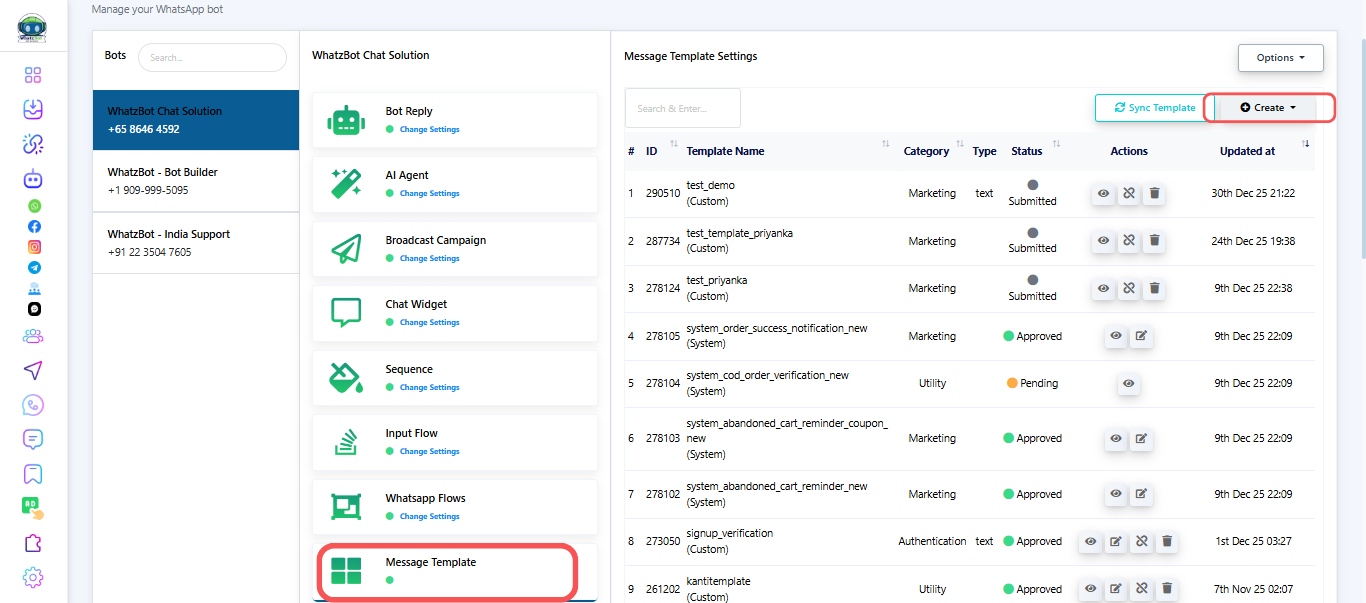
Step 1: Go to Message Template
- Log in to your WhatzBot dashboard.
- From the sidebar, click on Chatbot Manager → WhatsApp Bot.
- From the list look for message template.
Step 2: Start a new Message Template
- Click the create button to create a new Message Template.
- It will give a drop down of some templates:
- Mixed Template
- WP Template
- Carousel Media Template
- Carousel Product Template
- Default Template
Step 3: Set up the Message Template
- Template Name: Give this template a recognizable label to use or track later on.
- Locale: You can choose the language here.
- Template Category: This section has three options Utility, Marketing and Auth/OTP.
- Header Type: Here you can select the type of header you want. Eg. Text, Image, Video, Doc or even you can choose no header.
- If you choose a header type as text then it will now show another option i.e. Header Text. Now you will have to add the text you want to show at the top of the message.
- Message Body (1024): Here you can customize your message, but it should be within 1024-word limits.
- Footer Text: This can be used when you want to write a thank you message at the end of the message.
- Add Button: You can also add buttons to your message. It has various options of self-customizing, adding the phone numbers or website link using the button.
- In the right-hand side, you can also check how your message is being created.
- After saving the template it will show a success message and will be added to the list.
- As you can see the status as submitted, it has to approved by meta to be used by you.
